

Boot device not found is the PC’s firmware talking, before Windows has loaded a single file. It looked for a drive to start from and found nothing it could use. Usually the fix is small: a USB stick is in the way, or the boot settings were reset, and putting that right brings Windows back with nothing lost.
HP words it as Boot Device Not Found with the code 3F0, Dell as No Boot Device Found, and Lenovo as Default Boot Device Missing or Boot Failed. It’s the same fault each time.
One check settles how serious it is: open the firmware setup screen and see whether the internal drive is listed. A drive that shows up there can be brought back with a settings change or a boot file repair. A drive that’s missing has worked loose or failed, which makes it a hardware job, and the files on it matter more than the repair.
Try these first
- Unplug every USB stick, external drive, SD card and dock, then restart.
- Do a hard reset: power off, unplug the charger, hold the power button for 15 to 20 seconds, reconnect and start.
- Open firmware setup (F10 on HP, F2 on Dell) and check whether the internal drive is listed.
- Drive listed? Put Windows Boot Manager, or the internal drive, first in the boot order.
- Run the built-in drive test: Esc then F2 on HP, F12 then Diagnostics on Dell.
- Find your BitLocker recovery key before you change firmware settings or run repair tools.
Rather not fix it yourself?
A GoProIT technician can connect remotely, with your permission, and fix it while you watch. $59 flat per fix · Mon–Fri 8am–8pm ET.
One fault, five ways of saying it
The wording depends on who wrote the firmware. Find yours in the table; the order of checks afterward is the same whatever the screen says.
| What the screen says | Where you see it | What it means and where to start |
|---|---|---|
| Boot Device Not Found, with the code 3F0 | HP laptops and desktops | HP calls it Hard Disk Error 3F0. Its own order is BIOS defaults first, then the hard drive test. |
| No Boot Device Found | Dell | Dell’s checklist: unplug external devices, hard reset, diagnostics, then four BIOS settings. |
| Default Boot Device Missing or Boot Failed | Lenovo ThinkPad, ideapad, ThinkCentre and ideacentre | Lenovo gives three causes: a wrong boot order, wrong BIOS settings, or a failed drive. |
| No bootable device, or the long form: Reboot and Select proper Boot device or Insert Boot Media in selected Boot device and press a key | Other brands and many desktops | Nothing in the boot order could be started. Look for a stray USB drive before anything else. |
| Operating System not found or Missing operating system | Dell and others | The firmware reached a drive and found nothing startable on it. It may be reading the wrong drive, or the boot files are damaged. |
A blue screen with a stop code is a different fault. INACCESSIBLE_BOOT_DEVICE means Windows did start and then lost its drive, and our inaccessible boot device guide covers that one. If you aren’t sure the PC even gets this far, with no logo or no lights at all, begin with finding where a computer that won’t boot stops.
Unplug everything and start it cold
Start with the test that costs nothing. Pull every USB stick, external drive, memory card and dock, and leave only the power connected (plus keyboard, mouse and screen on a desktop). Dell points out that a USB drive, SD card or dock can be picked as the startup device by mistake, which makes a healthy internal drive look missing.
Then do a hard reset to drain any leftover charge. Dell’s version: switch off, unplug the power cable, hold the power button for 15 to 20 seconds, reconnect and switch on. A laptop with a built-in battery needs its maker’s own version, covered in our guides to an HP laptop that won’t turn on and a Dell laptop that won’t turn on.
When that gets Windows started, plug things back in one at a time. Whatever brings the message back is what the firmware was trying to boot from. Move the internal drive above it in the boot order and it stops mattering.
Open firmware setup and look for the drive
What you find on this screen decides the rest of the job. Switch the PC on and tap the setup key straight away: F10 on HP, F2 at the logo on Dell. On other makes the key is shown for a moment at power-on, or it’s in the manual. Then look for two things: whether the internal drive appears at all, and what sits first in the boot order.
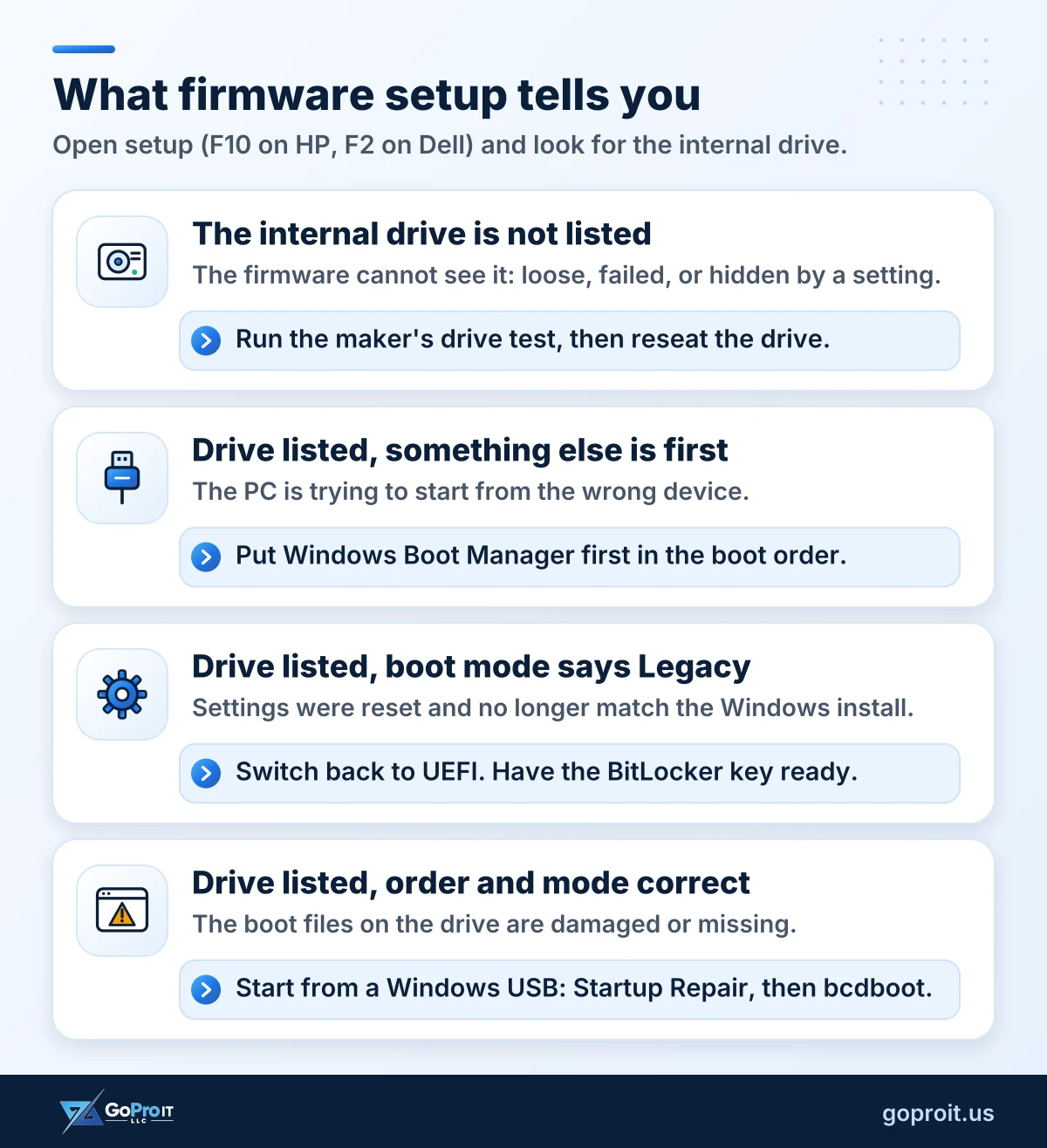
- The drive isn’t listed anywhere. The firmware can’t see it, so no Windows repair can work yet. Skip to the drive test and the reseating section.
- The drive is listed, but something else is first. Move Windows Boot Manager, or the internal drive, to the top. Save and restart.
- The drive is listed and already first. The settings around it were reset, or the boot files on it are damaged. The next section covers the first, the repair section the second.
On a Dell, the drive shows under System Information or Storage and the order under Boot Sequence; other makers use their own names. Photograph each screen before you change anything, so you can put it back.
After a BIOS reset or a flat clock battery
Firmware settings don’t drift, but they do get wiped. Someone loads the defaults while looking for something else, or the small battery that keeps the settings runs flat. Dell notes that a discharged CMOS battery resets the BIOS at every start, boot order and storage mode included. A laptop that spent the summer in a drawer is the usual example.
Three settings decide whether the PC finds Windows:
- Boot order. The internal drive belongs first. On current PCs its entry is called Windows Boot Manager.
- Boot mode. Dell lists a UEFI or Legacy mismatch among the settings that hide a drive, and its fix is short: if the mode says Legacy, change it to UEFI. Only a PC old enough to have been set up in Legacy mode needs the reverse, a case Lenovo covers for its older machines.
- Storage mode. Leave the SATA or storage setting (AHCI or RAID) alone while the drive is visible. Dell warns that changing it on a working Windows install can swap this message for an Inaccessible Boot Device blue screen.
HP and Lenovo come at it from the other side and tell you to load the defaults. On HP that’s F10 for setup, F9 to load them and F10 to save. Lenovo uses F9, then F10. It’s a fair first move on a PC nobody has customized; where an IT person set it up, note the current values first.
A warning if the drive is encrypted. Microsoft’s list of events that trigger BitLocker recovery includes firmware upgrades, changes to the boot manager and, on some older PCs, a changed boot order. Have the 48-digit key before you save anything; our BitLocker recovery key guide shows where it’s kept.
Rather have a technician sort it out?
A PC showing this message can’t accept a remote connection yet; once Windows starts again, a technician can connect with your approval to check the drive’s health and make sure your files and BitLocker key are backed up. If the computer won’t start, call us and we’ll tell you honestly whether it can be fixed remotely or needs a hands-on repair. Once it starts, a technician can connect with your approval and fix the rest for $59.
Run the maker’s own drive test
HP and Dell both build a drive test into the firmware, so it works when Windows doesn’t.
- HP: hold the power button for at least five seconds to switch off. Turn the PC on and press Esc about once a second, then F2 when the menu appears. Choose Symptom Tests, then Hard disk/SSD drive issue. If the Quick Test passes and you still have doubts, run the Extensive Test. A failure gives a 24-digit failure ID that HP support will ask for.
- Dell: tap F12 at power-on until the One Time Boot Menu appears, choose Diagnostics and press Enter. The SupportAssist Pre-Boot System Assessment (ePSA on older models) starts by itself. If it fails, note the error code, the validation code and the Service Tag.
Read the result the way Dell does. A pass means the drive hardware works, so the fault is in the settings or, failing that, the boot files. A fail points at the drive or its connection: reseat it and test once more before you write it off.
Lenovo’s page for this error links to its own diagnostic tools. GoPro IT isn’t affiliated with HP, Dell, Lenovo or Microsoft; these steps come from their published support pages.
Reseat the drive, where the model allows it
Dell calls a loose connection the single most common hardware cause of a drive that isn’t detected. It’s also the one a careful person can fix. A laptop that was dropped, or a desktop that was carried to a new desk, is how it tends to happen.
Unplug the PC and touch bare metal on the case before you handle anything. In a current laptop the drive is usually an M.2 stick held down by one screw. Take the screw out, slide the stick out and check the slot for dust, then push it back in at a slight angle and refit the screw. In a desktop, press the data and power cables home on a SATA drive, and try a different SATA port on the board.
Look up the service manual for your exact model first, and check the warranty. Lenovo’s page is blunt that some drives aren’t removable at all. Run the drive test again afterward.
Drive listed and first in line: repair the boot files
Now the fault is on the drive itself, in the small set of files the firmware hands control to. You need a Windows installation USB made on another PC. Start from it, choose your language, and take the repair link that Microsoft’s instructions call Repair your computer. Don’t choose Install.
- Startup Repair. Go to Troubleshoot > Advanced options > Startup Repair. It’s Microsoft’s first method for boot file trouble, and it needs no typing.
- Rebuild the boot files. Open Command Prompt from the same menu. Type
diskpart,list volandexitto see which letter the Windows volume has here, because it isn’t always C:. Then runbcdboot C:\Windowswith that letter. On a UEFI PC this copies fresh boot files to the system partition and puts a Windows Boot Manager entry back at the top of the firmware’s boot list. - Older BIOS-based PCs only. Microsoft’s commands for a damaged boot record are
bootrec /fixmbrandbootrec /fixboot.
An encrypted drive has to be unlocked before any of this can read it. When the recovery tools are started from a USB stick, Microsoft says the BitLocker recovery key must be supplied.
Stay away from the clean and format commands in diskpart, which erase the drive, and don’t start a fresh Windows install until your files are safe. If Setup shows no drive at all on a PC whose firmware does list one, the installer may be missing a storage driver. HP’s page for this error points to a separate document for that, on PCs with Intel 11th Generation processors.
When the drive is dead, the data comes first
Stop repairing when the firmware still won’t list the drive after a reseat, when the maker’s test fails twice, or when a hard disk clicks or grinds. Every further start attempt gambles with whatever can still be read.
Settle the question of the files before the repair. If they also live in OneDrive or a backup, a new drive and a fresh copy of Windows puts the PC back in service. If they don’t, say so before anyone touches the machine. The routine repair swaps the drive and reinstalls, which does nothing for the files on the old one.
HP’s last step for this error is reinstalling Windows, with its own caution to back up first. On a drive that has just gone missing, don’t reinstall onto it until it has passed the Extensive Test or its equivalent.
None of this can be done over a remote connection while the PC shows this message. It needs hands on the machine, and parts aren’t part of a remote fix. Once Windows is running again, the follow-up is work for our remote support service, in a session you approve. That’s a check of the drive’s health and a backup, so the next failure costs you an afternoon and not your files.
Common questions
What does boot device not found 3F0 mean on an HP?
3F0 is HP’s code for a hard disk the firmware could not start from. It does not say why. HP’s order is to restore the BIOS defaults (F10, then F9, then F10 to save), run the hard drive test in HP PC Hardware Diagnostics UEFI, update the BIOS and, last, reinstall Windows. If the drive test fails, write down the 24-digit failure ID before you contact HP.
Does no bootable device mean my hard drive is dead?
Not by itself. The same message appears when a USB stick is in the way, when the boot order or boot mode was reset, and when the boot files are damaged. Look in firmware setup. A drive that is listed there is usually fine and needs a settings change or a boot file repair. A drive that is still missing after a reseat, or that fails the maker’s test, has probably failed.
Why does my PC say reboot and select proper boot device?
Because nothing in its boot order could be started. Check the plain causes first: a USB stick, memory card or external drive that the PC tried to start from, or a boot order that no longer has the internal drive at the top. On a desktop that was moved or opened recently, the data or power cable to the drive may have come loose.
Can I fix operating system not found without losing my files?
In most cases, yes. Unplugging devices, correcting the boot order or boot mode, running Startup Repair and rebuilding the boot files with bcdboot do not remove documents. What does destroy files is a clean reinstall, the diskpart clean command, or continuing to run a drive that is failing. If the drive is suspect, get the files copied off before any repair.
Why did boot device not found appear after the laptop sat unused?
The small battery that keeps the firmware settings can run flat, and the settings go with it. When the PC has power again, the boot order, boot mode or storage mode may be back at factory values that do not match how Windows was installed. Charge it, open firmware setup, check those three settings and put the internal drive, shown as Windows Boot Manager, first.
Do I need a Windows USB to fix no boot device found?
Not for the first checks. Unplugging devices, a hard reset, the firmware settings, the maker’s drive test and reseating the drive need no media at all. You need a Windows installation USB, made on a working PC, only when the drive is listed and first in the boot order and Windows still will not start, because the repair tools then have to run from somewhere other than the faulty drive.